Follow the service. Keep worship flexible.
Organize your team’s setlist, route clicks and cues to the right outputs, and extend a section when worship calls for it. Your playback follows your lead.

PLAYBACK ETERNAH
Build your setlist, lead every section, and keep your click, cues, and pads under control. One interface for performing with REAPER.
Manual activation · 30-day access · up to 2 computers
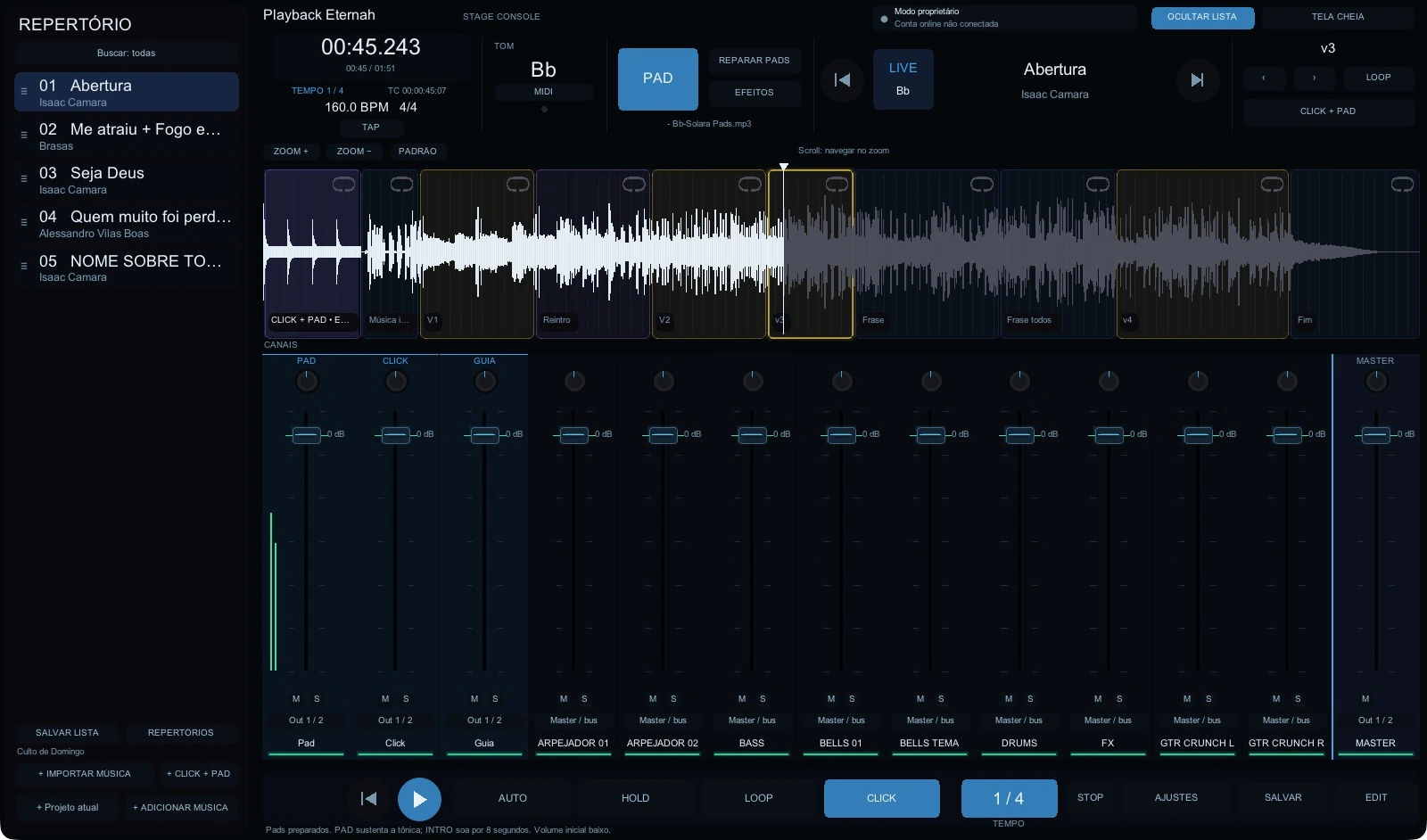
ETERNAH OVERVIEW
From your first rehearsal to the final chord: prepare your performance, stay in sync with the band, and take control of what happens live.
Organize your team’s setlist, route clicks and cues to the right outputs, and extend a section when worship calls for it. Your playback follows your lead.
Prepare your stems, customize keys and your mix, and lead the show from your controller. Organized arrangements let you focus on your performance.
Create and save setlists for every service, rehearsal, or show. Search your library, add songs, and drag to reorder. Set keys, volumes, mutes, and song structure before stepping on stage. You can also create click + pad projects.
Bring in a folder of stems to build your project. Analyze BPM and get AI-assisted section suggestions, then review them in Edit mode to match your arrangement.
The waveform shows your song structure with colors for intros, verses, choruses, and bridges. Zoom, move the cursor, and create divisions right in the preview while editing. Insert, remove, or reorder sections and restore the original structure.
Repeat a section once, or keep it looping until you release it. When you select another section, the transition finishes the current bar and counts one more full bar before switching.
Set BPM and time signature, use Tap Tempo, and return to the original BPM. Add click + pad sections at the beginning, middle, or end, with a looping intro until you start the song.
Your pad follows the song’s configured key and transposition, with an option to restore the original key. Customize your files, control the volume, and fade in, fade out, or crossfade without restarting the pad with the click.
Generate vocal cues from named sections and your configured voice recordings. Use a dedicated channel to guide the band through entrances and arrangement changes.
Control each channel’s volume, pan, mute, solo, and outputs. Pad, Click, and Guide stay on the left; Master stays on the right. Buses group instruments, and illuminated strips show which channels are active.
Hold fades instruments down over three seconds, keeping click and pad active. Tap again to release and gradually return the faders to their previous levels.
Map buttons and faders to your MIDI controller and use keyboard shortcuts. You can also operate from a phone or tablet on the same network as your computer, with a responsive interface.
Publish your projects and audio to Google Drive and download songs to your local cache. Use the seven-day cache setting to manage storage. The current connection uses Google Drive for desktop.
Save projects and setlists, manage your account and computers, and check for new versions inside the app. With Auto enabled, the next song in your setlist starts automatically when the current song ends.
YOUR WORKFLOW
Eternah runs with REAPER 7 or later on Apple Silicon Macs and 64-bit Windows 10/11. Local AI analysis requires an initial setup with internet access and available storage; its suggestions should be reviewed. Vocal cues use your configured voice recordings. Remote control requires the same local network. The desktop app is currently available in Portuguese.
Manage your subscription, computers, and downloads in the customer portal.
Enter the customer portal ↗Requires REAPER on your computer. Automatic billing will be added in a future update.